How can we help you?
-
Knowledgebase
-
- What is the difference between the Glassboxx app and the Glassboxx eLearning app?
- Have you got a demo site we can see?
- Digital Rights Management with Glassboxx
- Our website doesn't have it's own ecommerce, so what Glassboxx options can we use?
- We have an ecommerce site already, so how do we add Glassboxx to it?
- What's the difference between Vendor and Vendor+?
-
- What do I need to include in my ONIX?
- I've had a 'Missing asset files' email. What should I do?
- How do I add a book as a pre-publication review copy?
- How do I check the sales rights setting for my product?
- Does file size matter?
- Why are my books disabled?
- I've uploaded everything, so why is nothing listed in Manage Books?
- It's going to take a while to get everything uploaded, can I stop the importer running until it's all ready?
- I've got hundreds of products and asset files to add to Glassboxx, what should I do?
- I've just got a couple of books to upload, what's the best option?
- And ePub and PDF files?
- And audiobook files?
- What about cover images?
- I'm having trouble with my CSV file. What should I do?
- I don't have an ONIX file, so how can I add my books to Glassboxx?
- I'm using ONIX, so how do I add my product meta data to Glassboxx?
- How do I upload content myself to the automatic uploader?
- Is the FTP method used by the automatic uploader secure?
-
- Product setup in WooCommerce
- Can I sell eBooks and/or audiobooks from multiple websites using Glassboxx?
- Why do my customers get the message 'We couldn't find the product: '' in the Glassboxx checkout?
- Can a customer buy more than 1 copy of an eBook or audiobook?
- With the Wordpress/WooCommerce plugin why am I seeing the message 'Fatal error: Cannot declare class Woo_Glassboxx, because the name is already in use'?
- Why am I seeing the message 'The product is not available in your location' when buying a product?
- Why does the Buy button in Android go to Glassboxx?
- Why does the Buy Now button I added have no styling?
- How do I add a bookstore to my website or blog?
- How do I link out to the Glassboxx product page from a YouTube video?
- How do I add a simple link to buy my book from my website, blog, email or Facebook/Twitter?
- How do I add a Buy Now button or area for my book to my website, blog, email or Facebook/Twitter?
- Why don't my books have buy buttons in the iOS app?
- Everything looks good, how do I go live?
- I've done a test purchase but I can't log into the app, or the book I bought isn't appearing. What's happening?
- How do I test my Vendor integration when I have separate dev and staging environments?
- OK, the integration is done, how do I test it?
- What can I add to the order success page and confirmation email from my site about Glassboxx fulfilment?
- I have a Glassboxx Vendor account and have uploaded my meta data and assets, so what's next?
-
- Does Glassboxx send emails to my customers?
- How do gift orders work?
- How do pre-orders for audiobooks and eBooks work?
- How can I customise my Glassboxx product pages in bulk?
- How can I customise an individual Glassboxx product page?
- How does the end user get their gratis copy?
- How can I send a gratis copy for an audiobook or eBook?
- My customers say the Glassboxx voucher code I've given them isn't recognised on my site
- How do my customers use a Glassboxx voucher code?
- How do I give my customers a voucher code?
- Is a discount voucher code case sensitive?
- How can I set up discount voucher codes?
-
-
How to Videos
- How to Redeem a Token with Glassboxx
- Glassboxx Portal Demo
- Glassboxx Vendor+ User Experience
- Glassboxx Vendor User Experience
- How to Generate Bulk Sales Tokens
- How use B2B Bulk Sales
- How to create a gratis copy voucher, and then redeem it
- How to export the Buy Now links
- How to customise your product landing pages with your logo and a custom background image or the book cover
- How to embed a Buy Now button
- How to add a Facebook post linking to your product landing pages
-
Plugins
-
API
-
Onboarding
How do I upload content myself to the automatic uploader?
If you don’t have a DAM from which you can transfer your assets, you can upload your assets yourself by transferring your files using an FTP client such as Filezilla. If you need an FTP client, you can download Filezilla from here.
You should create a connection using the host, user and password we send you. Also, you should use the encryption setting to explicitly require FTP over TLS (e.g. in FileZilla, the encryption setting is ‘Use explicit FTP over TLS if available’, see below)
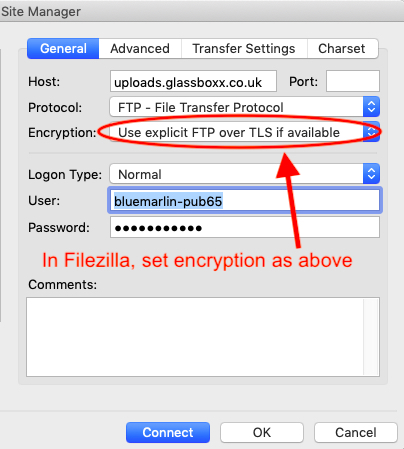
When you connect for the first time you may get a warning that the server’s certificate is unknown. You will need to tick the ‘Always trust…’ tick box and accept, if you’re happy to do so.
Once connected, make sure the files that you are uploading are named according to our requirements, and then simply drag your ePub and/or mp3 files, cover images and ONIX file from your PC to the FTP space. You don’t need to separate your files into sub-folders, just upload everything into the top level folder in your FTP space. Your files will be moved out by our importer and processed before being ready on Glassboxx.
Finally, if getting all your content ready and uploaded is going to take a while, on the Automatic Uploader page, leave the ‘Include feed in importer’ switch to NO until everything is in place. Then when you want to have your feed added, change the ‘Include feed in importer’ switch to YES.


